
Below is a guide on how to change the notifications received via ParentSquare.
Firstly log into your ParentSquare account.
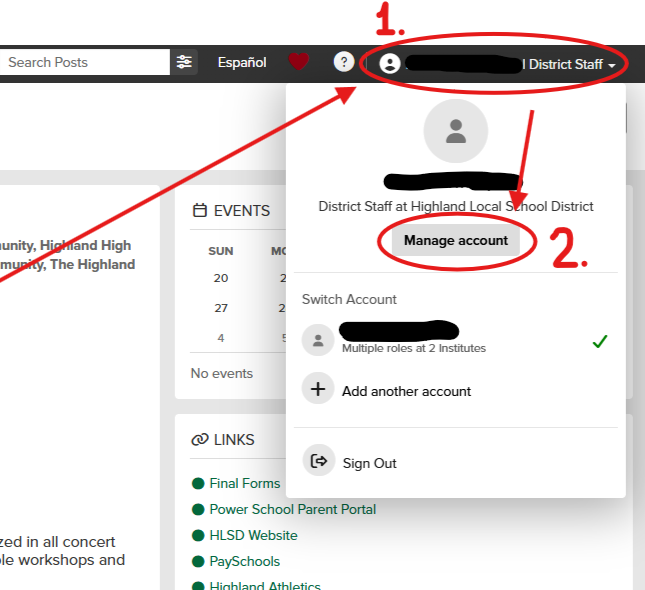
- look at the top right corner and you should see your account name. Click on that to bring up the drop down menu.
- From the dropdown menu, select the ‘Manage account’ button.
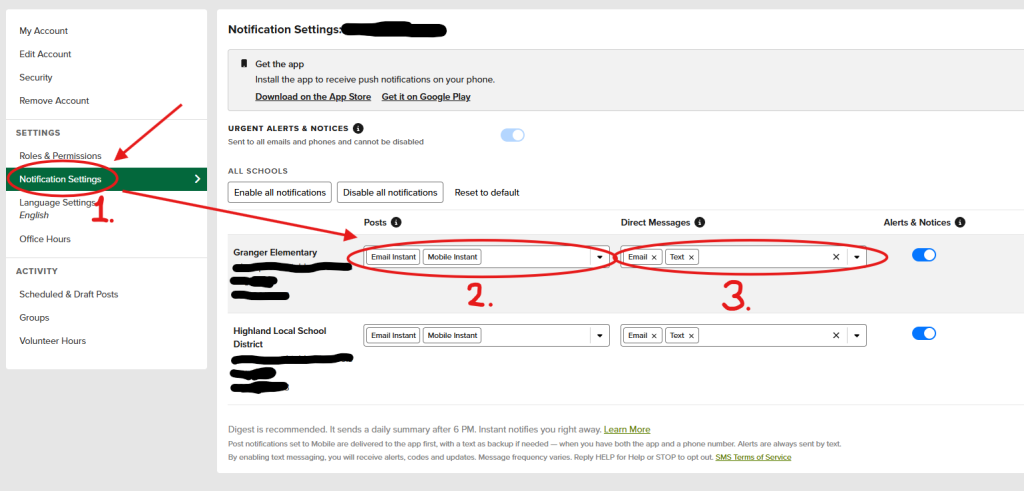
- Once on your account management screen, look at the left hand side of the screen and click on the ‘Notification Settings’ option. This will bring up the notification settings on the right side of the screen.
- From here Look for the drop down menus under the ‘Posts’ and ‘Direct Messages’ tabs.
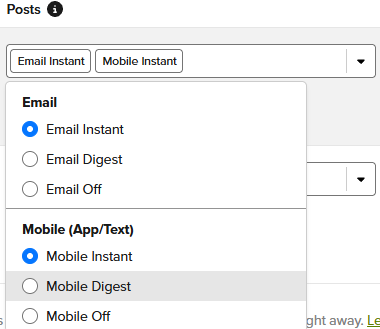
For these drop down menus there are a few options. Below is a brief mention of each.
Posts: These are messages sent out to the whole group for the affiliate district or building.
Instant option: This sends all posts to the media types that have this option selected.
Digest option: This sends a daily message about all non-urgent posts made though the day.
Off option: This option disables all non-urgent posts for the media types that have this option selected.
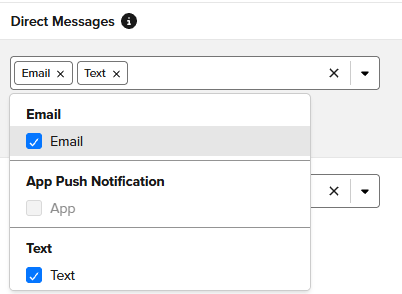
Direct messages: These are messages that are targeted messages from staff or parents.
This drop down allows you to select which media types you receive direct messages on.
Alerts & Notices: On the right most spot is a switch that lets you enable or disable if you receive urgent messages. If it is greyed out, it is disabled and you will not receive alerts or notices.