Important Notes:
- Make sure to Log out after you finish using the Share service if you are using a public device.
- Only share sensitive information with password protected shares.
- This is NOT a storage drive.
- Save share passwords in a safe location.
Logging In:
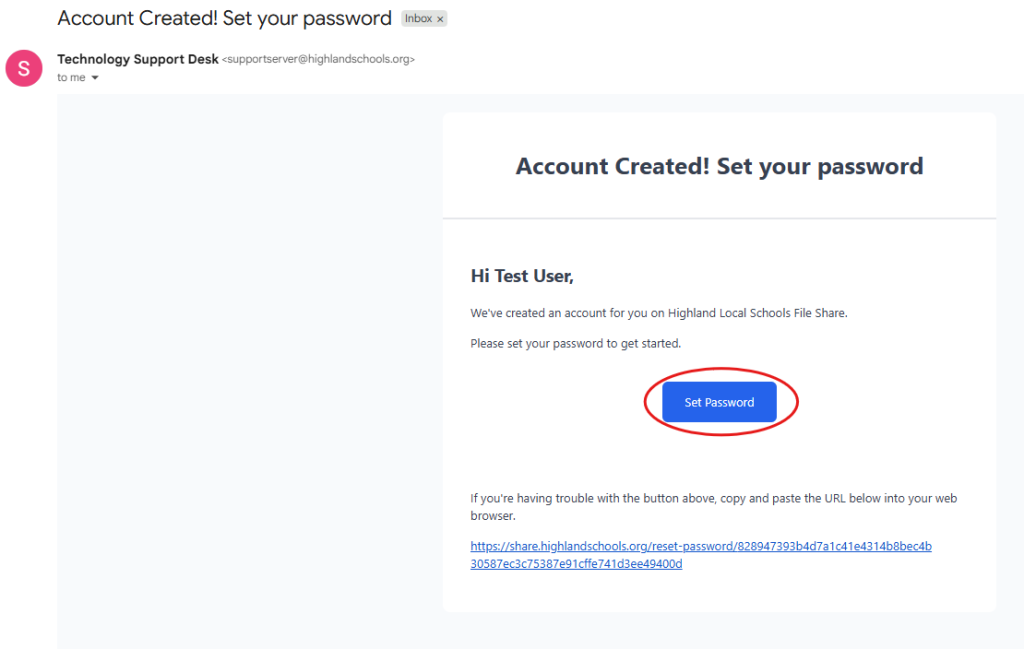
Users will need an account made by an administrator. Once the account is made, an email will go out to the user’s account where they will see a button to set their password for the account.
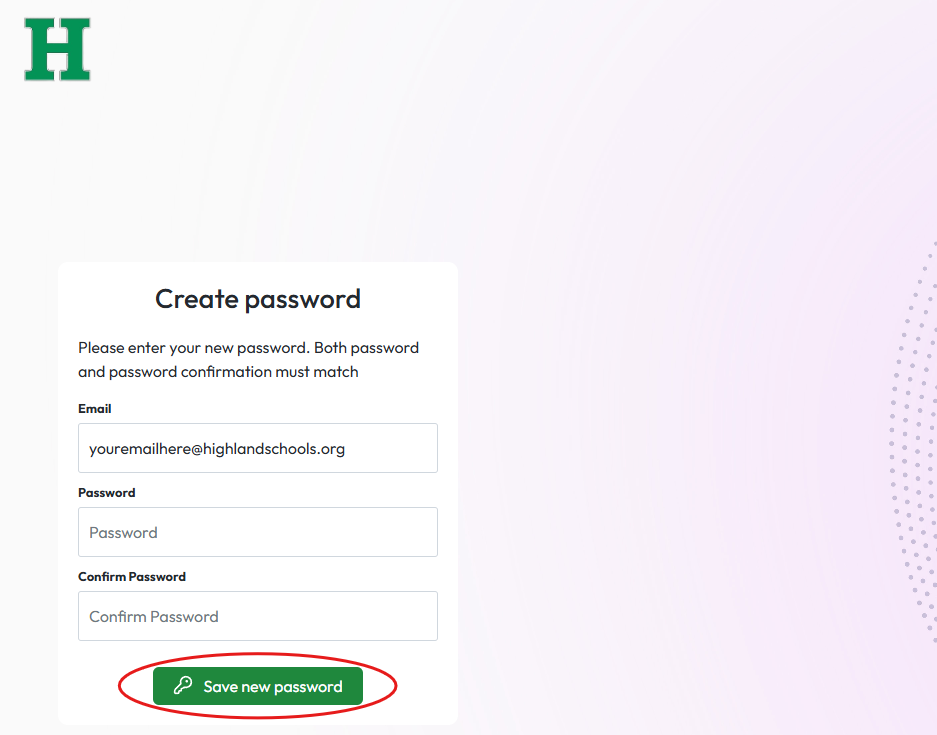
Next enter your email and set a password in the fields displayed and then click the “Save new password” button.
Account Settings:
After a screen that says the password was successfully set. You will load into the home screen. From here you should make your way to the lower right corner and click the settings icon (gear).
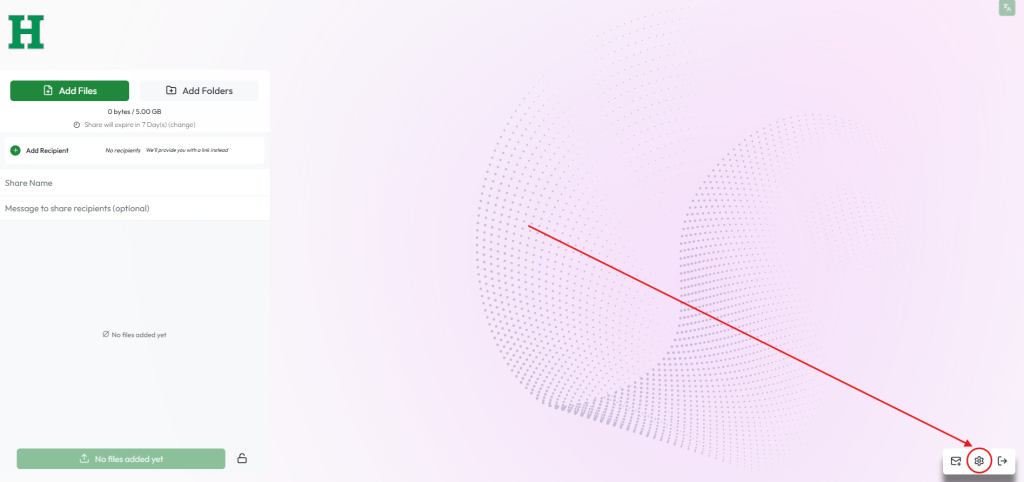
Opening the settings you will see three tabs.
- About: This tab simply lists information about the file share service and is not needed for anything the user might want to do.
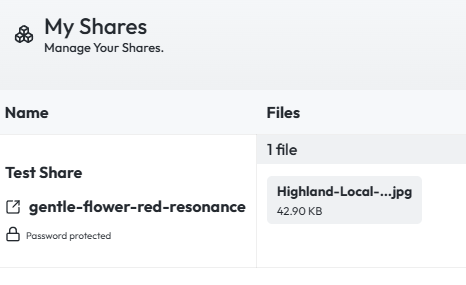
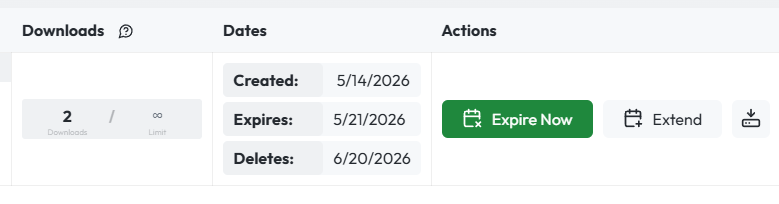
- My Shares (Default): This tab will show you any shares that you have active including the files shared, the size of the share, the date shared, the date the share will remove access to the other individual, and the date of auto removal from the file share. (This is not a storage drive!)
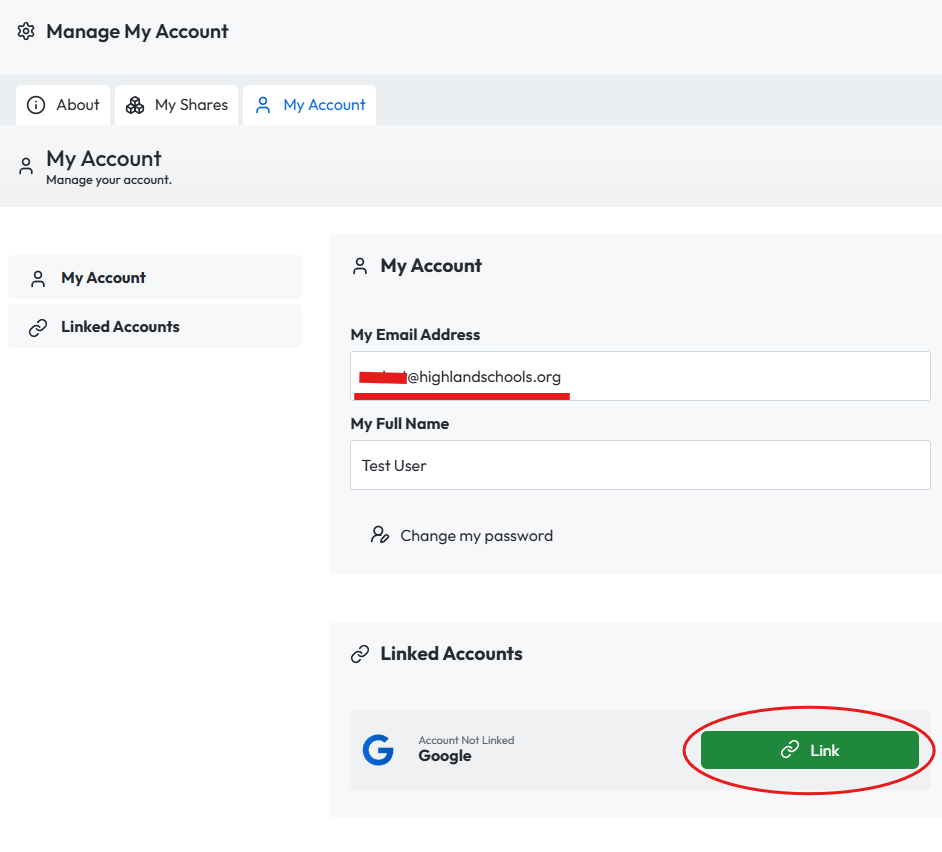
- My Account: This tab allows you to manage your name, email, password and linked accounts.
Navigate to the ‘My Account’ tab first. From here click the link button by Google in the ‘Linked Accounts’ section. This will prompt you to login with your google account.
Please make sure the email listed in the ‘My Account’ section matches the email account you are linking to google.
Primary Functionality:
On the ‘My Shares’ tab click the ‘Create Share’ button to get back to the home page.
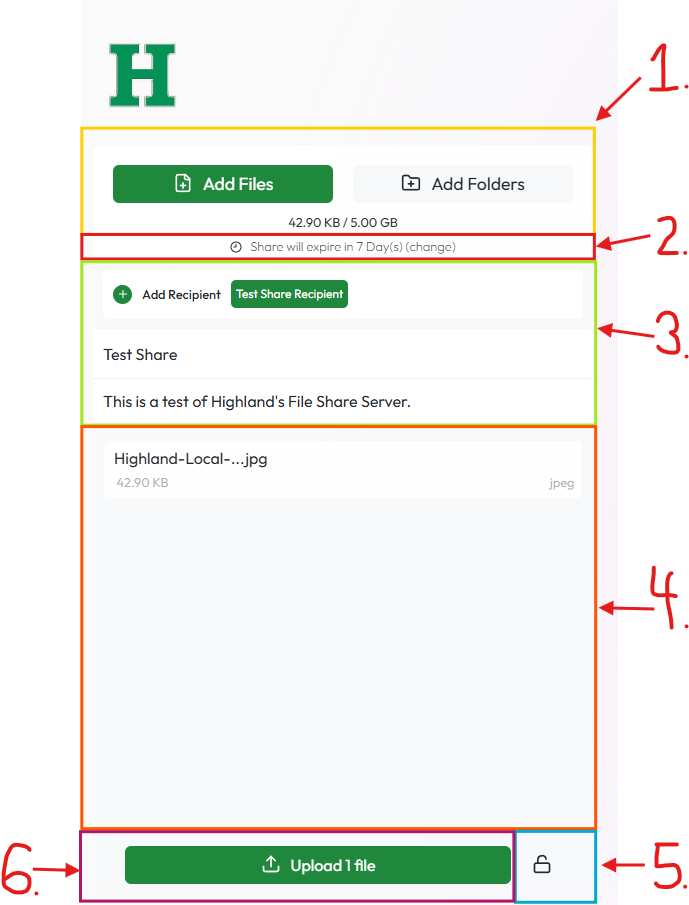
For the image below (PLEASE READ):
1: File Lookup
- In this section you click either the ‘Add Files’ or ‘Add Folders’ and navigate to the files or folders you wish to share (To drag files into the share wait for step 4).
2: File Expiration Duration
- You can change how long the file will be available to the person you are sharing to. The default is 7 days.
3: Recipient, Share Name, and Share Message
- This category is broken up into three sections.
- The first is where you can click the ‘+’ to add a recipient’s name and email address.
- The second is where you name the share for yourself and others.
- The third is the share message. You can add a message to give additional information to the recipient (Do Not Put The Password In the Message)
4: File List and Drag-and-Drop Location
- This section lists the current files that will be shared and also doubles as a drop box if you would rather drag-and-drop the files you wish to share.
5: Password Protect
- Clicking the lock allows you to set a password for the file. More information Below.
6: Upload
- Uploading is the final step of the share process, this adds all your files to the share server and automatically sends an email to the recipient with a link to the share. More information Below.
Password Protected Share:
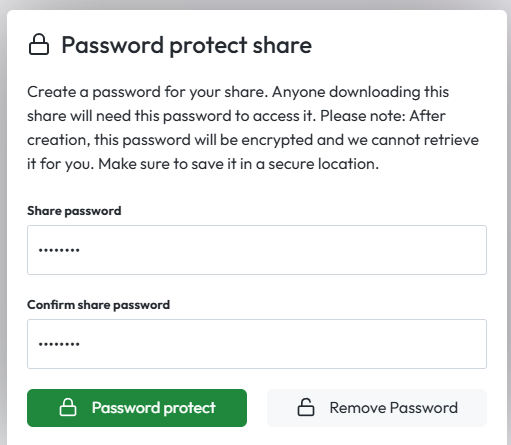
After clicking on the lock icon to add a password, you can type in the password you wish to use twice to confirm it then click the ‘Password protect’ button to lock the file (This is not your account’s password).
Remember your password for the share as you will need to manually send the password to the intended recipient of the share! This can be done via a separate email, or another secure form of communication.
Before uploading the share, ensure that the lock symbol next to the upload is now closed indicating the share is password protected.

Uploading a Share:
After setting up the share the way you want it to be, and you click the upload button, you will see the link to the share, but the recipient will also be sent an email with a link to get to the share.
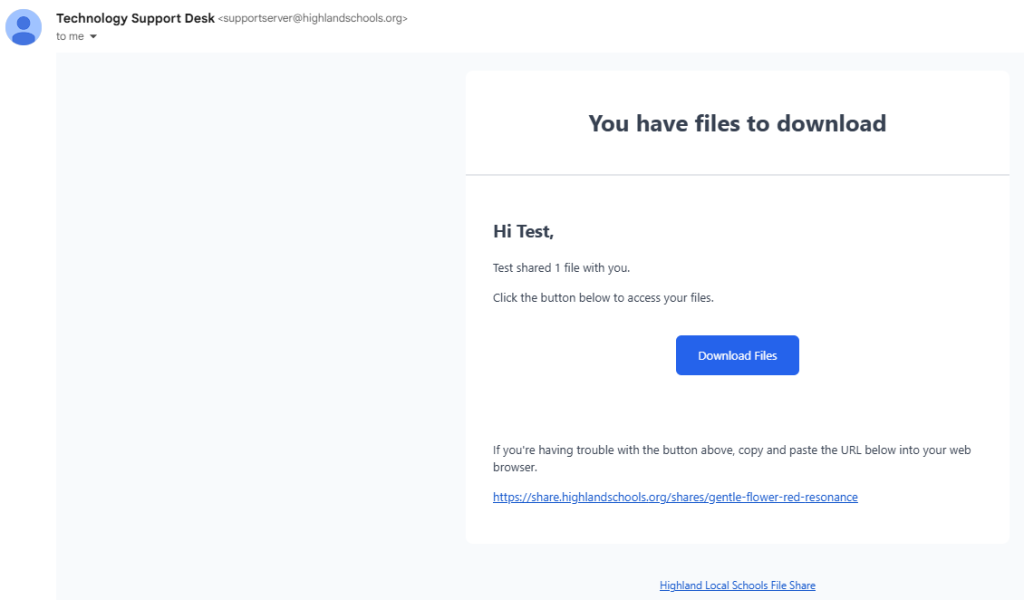
They can click the ‘Download Files’ button and it will take them to the share on Highland’s web page.
On the share page they will see how long the file will be shared for, what files are shared, how big the share is, and the message attached to the share. Before they can download the files they will need to enter the password made for the share.
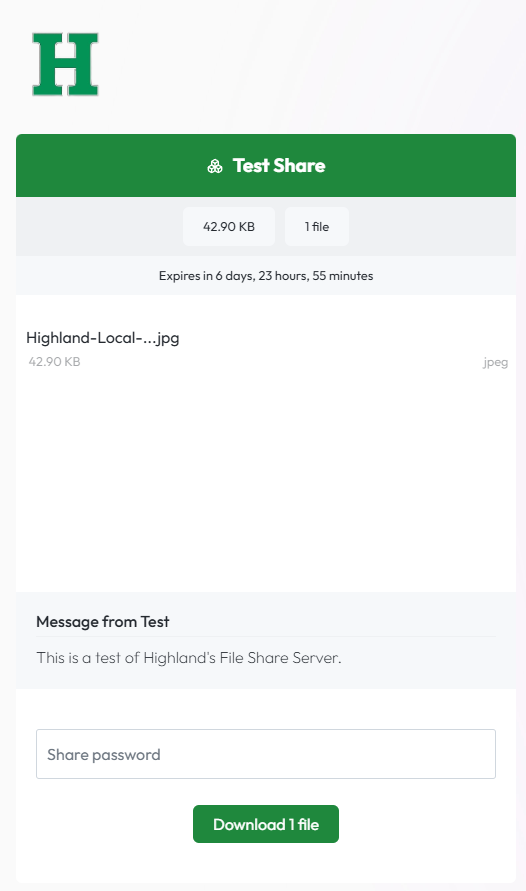
Once the password is entered and the download button clicked, the file will download on the recipient’s device.
My Shares Tab:
From this tab you can manage all active shares and see the dates for significant events related to each share. Below is an example of an active share and available options.