Today we will go over two methods to easily communicate with entire classes using ParentSquare.
Method 1 will only work for classes and groups that have less than 50 recipients. Method 2 will work for classes and groups of any size.
Method 1: Creating a Message (Under 50 Recipients)
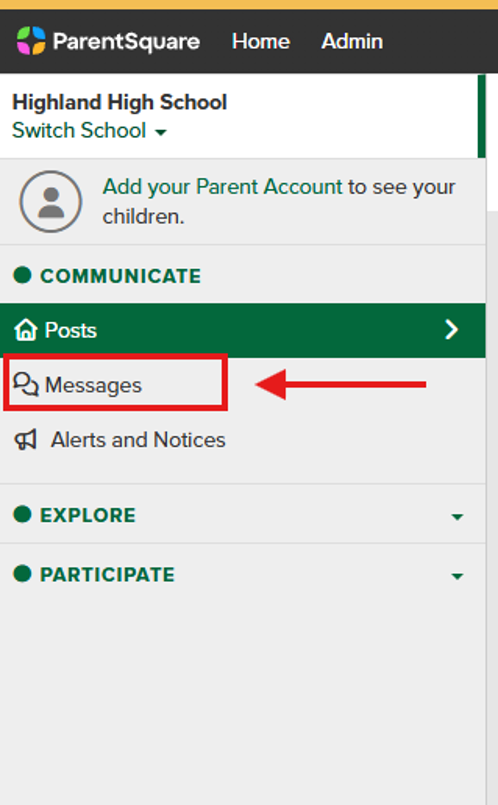
Click Messages under the COMMUNICATE tab located on the left sidebar.
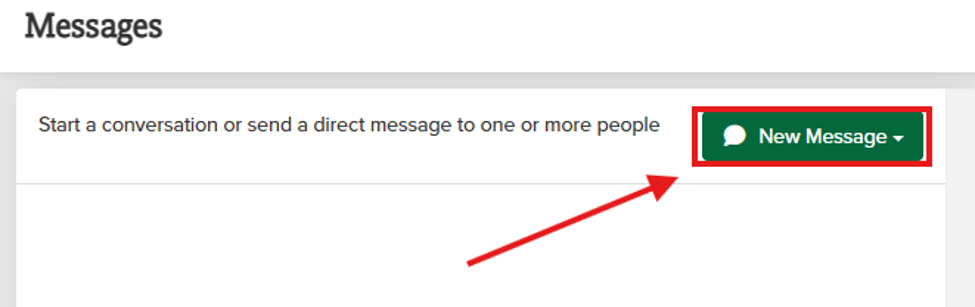
Select New Message
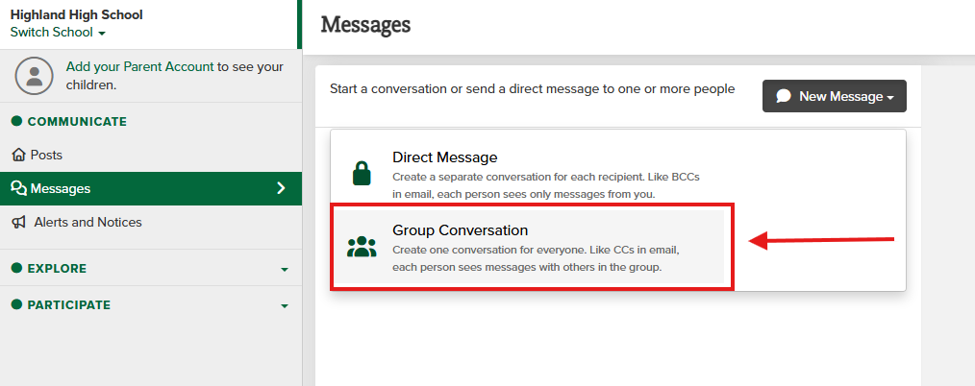
Select “Group Conversation“
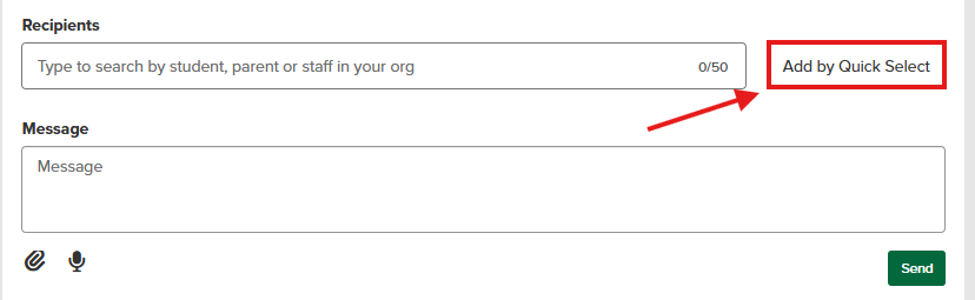
To add a class select “Add by Quick Select.”
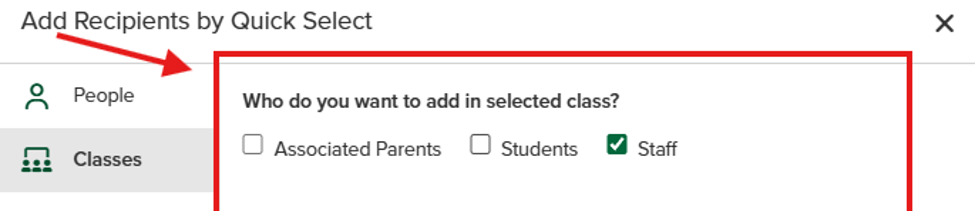
Choose who the message will be delivered to. This can be students of the class, parents of students, or staff associated with the class.
Navigate to the class you want to message and click on its box. Then click “Add recipients.”
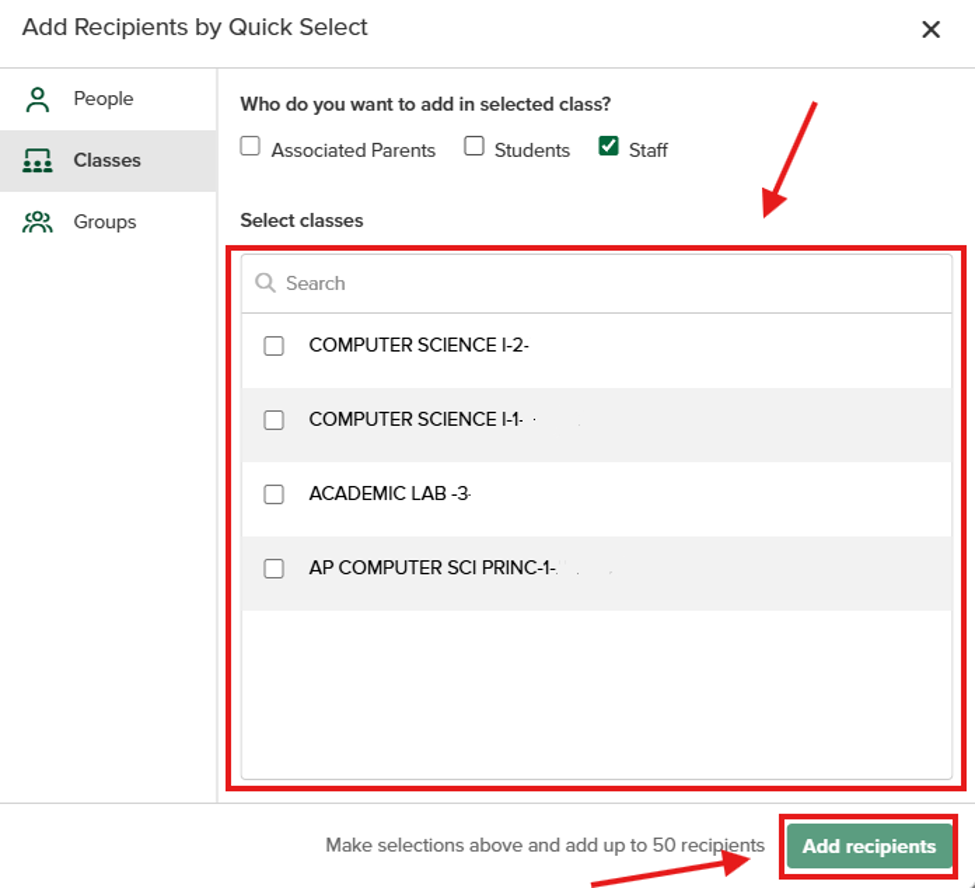
Please note – The class must be under 50 recipients in size to send a message. Classes or groups over 50 recipients in size must follow Method 2 below.
Method 2: Creating a Post (Any Number of Recipients)
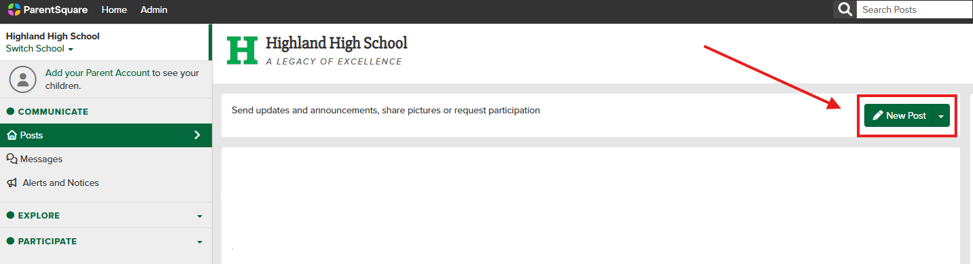
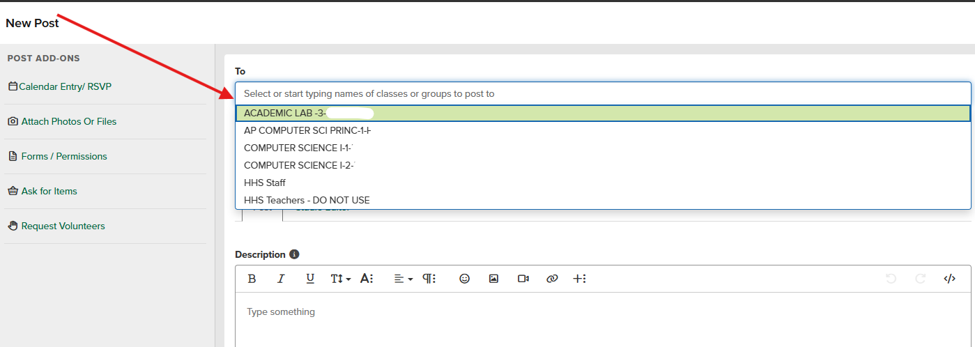
Navigate to the Home page and click “New Post” on the upper right.
Click the text box “Select or start typing names of classes or groups to post to.” This will give you a drop down menu of your classes.
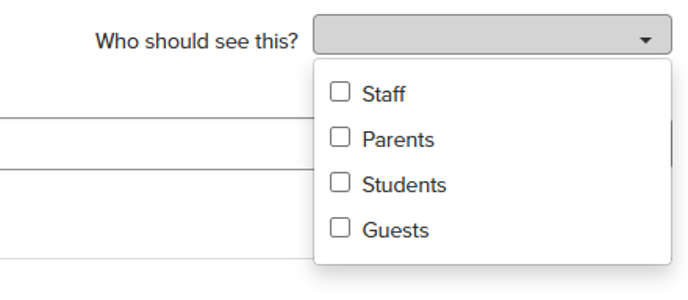
Next, change the visibility using the drop down box next to “Who should see this?” This can be customized for staff, parents, students and guests.